


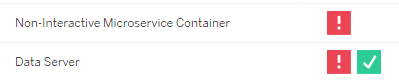
This is a case study describing one potential cause and resolution for the Data Server process becoming degraded after restarting the machine hosting your Tableau Server environment, particularly if you spot the Non-Interactive Microservice Container cycling in and out of a degraded state too!
Background:
The following occurred on a 2024.2.13 Tableau Server running on Windows Server 2019.
A customer had a nightly script which performed basic Tableau Server maintenance tasks which included stopping and starting the VM hosting the Tableau Server itself. One night, the script to start Tableau Server failed. After manually restarting Tableau Server all services reached an operational state apart from the Data Server and the Non-Interactive Microservice Container, the latter of which seemed to be cycling in and out of a degraded state.
Underlying Cause:
During the VM restart another Windows service had intercepted and taken over the port assigned to one of Data Server microservice processes before the microservice could retake ownership of it.
Evidence:
The TabAdminController logs showed the following when trying to start all services:
ERROR com.tableausoftware.tabadmin.webapp.asyncjobs.AsyncJobService - Error running job 3728 of type RestartServerJobjava.util.concurrent.ExecutionException: com.tableausoftware.tabadmin.webapp.exceptions.ServiceOperationTimeoutException: One or more services failed to reach their expected state.node1: dataserver_0.20242.25.0710.1539: Failed to start. Current status: DOWN
...
Caused by: com.tableausoftware.tabadmin.webapp.exceptions.ServiceOperationTimeoutException: One or more services failed to reach their expected state.node1: dataserver_0.20242.25.0710.1539: Failed to start. Current status: DOW
The Data Server logs furthermore revealed the following:
ERROR org.springframework.web.context.ContextLoader - Context initialization failed org.springframework.beans.factory.BeanCreationException: Error creating bean with name 'grpcServer': Invocation of init method failed; nested exception is java.io.IOException: Failed to start dataServerService gRPC service

...

Caused by: java.io.IOException: Failed to start dataServerService gRPC service

...

Caused by: java.io.IOException: Failed to bind to address 0.0.0.0/0.0.0.0:8005

..

Caused by: java.net.BindException: Address already in use: bind

...
Data Server logs prior to the failed overnight restart indicated that the Data Server process had been communicating on port 8005.
Resolution Summary:
Identify the service and port type for the service that had the port stolen. To find this, use one of the following:
The ‘tsm topology list-ports’ command.
The tabsvc.yml file.
The Config workbook produced by LogShark.
Pick a new port for the service which is not currently in use by both Tableau Server and server in general.
Update the port using the following command:
tsm topology set-ports --node-name <node> --port-name service:portType --port-value <port> --instance <instance ID>
Apply the change with ‘tsm-pending changes apply’.
Full Resolution Steps:
First, you need to confirm two things: the same of the service that had the port stolen, the instance ID for it, and the port type. There’s 3 ways you can do this:
Run ‘tsm topology list-ports’ on the Tableau Server and search for the port mentioned in the error message. The service name and port type are combined in the ‘Name’ field and the instance ID has its own column.

Review the ports.yml file in \Tableau\Tableau Server\data\tabsvc\config and search for the port mentioned in the error message. Each line looks like this:
worker0.dataserver_0.microservice.dataServerService.port: 8005“worker0” : the node (can ignore).
dateserver: the service name.
_0 : the instance id
microservice.dataServerService : the port type.

LogShark the ziplogs and review the Config workbook. Filter the Complete Workgroup.yml worksheet used in the Full Config dashboard by Value = <port>. The “Key” field shows the instance ID and service name.
dateserver: the service name.
_0 : the instance id
microservice.dataServerService : the port type.

Before moving on, check it wasn’t a Tableau Server process that took over the port indicated in the error message in the Data Server logs. Via any of the methods above, confirm that the port doesn’t show up a second time for any service.
If no other Tableau Server process has taken over the port you can simply reassign the port for your Tableau process to a new free one in the 8000-9000 range. Using any of the methods above find a port that is not assigned - there should be plenty!
Next, confirm your chosen port isn’t being used by any other Windows service. It shouldn’t as the 8000-9000 range should be reserved for Tableau but clearly it can happen as it caused this scenario. Run the following command to check that there’s nothing currently listening on your chosen port:
*netstat -ano | findstr :<port>*For example, “netstat -ano | findstr :8010”. If any results are returned pick a new port number and try again until you find one that’s free.
Once you’ve found a free port you can now craft your command to assign the port:
tsm topology set-ports --node-name node1 --port-name <service:portType> --port-value <port> --instance <instance ID>In our example, this would be “tsm topology set-ports --node-name node1 --port-name dataserver:microservice.dataServerService --port-value 8010 --instance 0”
tsm topology set-ports --node-name node1 --port-name dataserver:microservice.dataServerService --port-value 8010 --instance 0Finally, apply the changes with ‘tsm pending-changes apply’. This will restart the Tableau Server and it should be hunky dory after that!
Further Investigation
If you want to try and find out what Windows service stole the port you can run the following commands:
netstat -ano | findstr :<stolen_port>
The last column contains process PIDs.
tasklist /FI "PID eq <PID>"
Replace <PID> with the PID found.
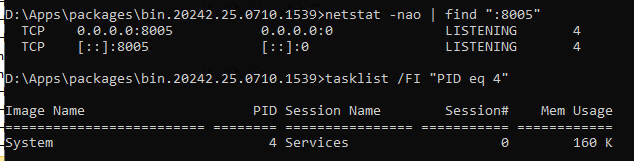
In our case, the PID 4 system service is pretty generic and too difficult to pin down for the sake of investigation but you might have different results!