This is a quick case study describing one potential cause and resolution for receiving an error such as the following when setting up a Salesforce Input or Salesforce Output tool in Alteryx Designer using DCM.
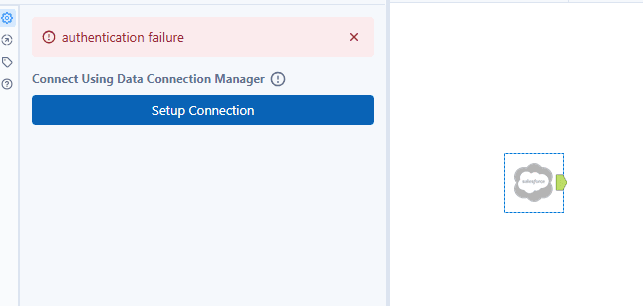
Built-In App: “authentication failure”
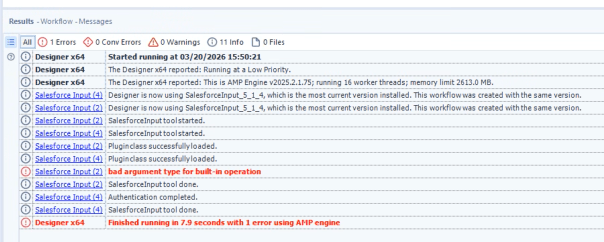
Custom App: “bad argument type for built-in operation"
Background:
Observed in:
Alteryx Designer 2025.2.1.75
Salesforce Input Tool v5.1.4
Salesforce Org API v66
The issue was only present in one of their two Salesforce orgs. This means you may not always experience the issue described below although I have no explanation for why it may effect one Org but not another.
Primary Symptoms:
After configuring the Salesforce DCM connection and credentials using the ‘Built-In App’ , clicking ‘Connect’ results in an ‘authentication failure’ error message despite the ‘Test Connection’ option in the DCM window showing a success.
After configuring the Salesforce DCM connection and credentials using a Custom App, it authenticates and lets you browser the tables but at runtime it fails with "bad argument type for built-in operation”
Additional Info:
No change in behaviour when:
Enabling AMP.
Testing different tables.
Choosing a custom list of fields.
Setting a record limit.
Modifying the WHERE clause.
User is a System Admin in Salesforce.
Users confirmed to have the API Enabled permission assigned in Salesforce.
Underlying Cause:
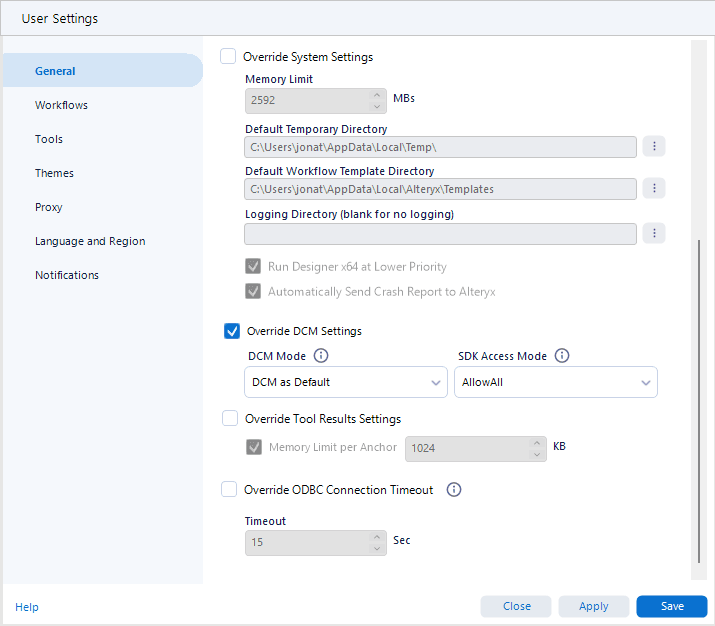
The tool requires the SDK Access setting to be ‘Allow All’.
Resolution Summary:
Designer:
Go to Options > User Settings > Edit User Settings
In the ‘General’ tab, tick ‘Override DCM Settings’ and ensure ‘SDK Access Mode’ is set to ‘AllowAll’.
Server:
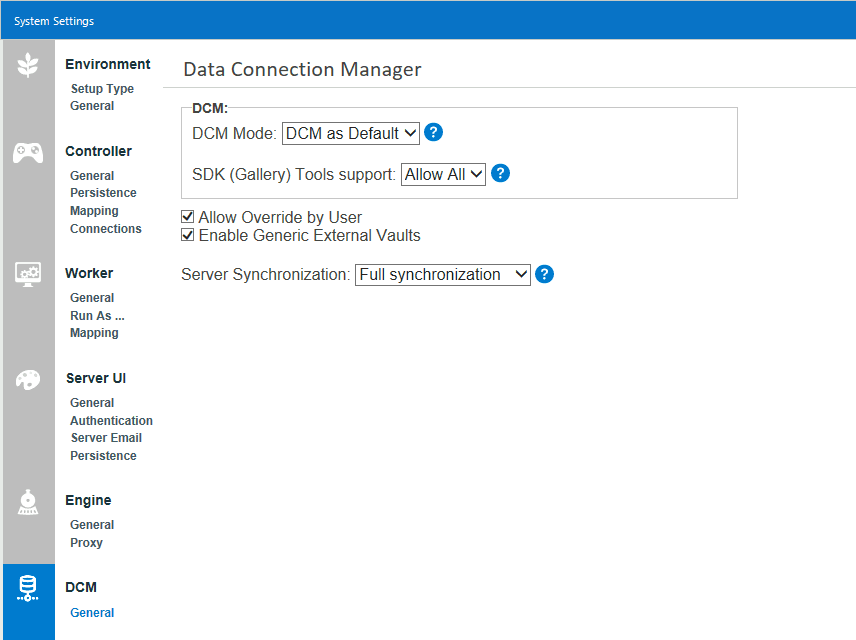
Open the Alteryx Server System Settings.
Click ‘Next’ all the way through to the DCM settings.
Set ‘SDK (Gallery) Tools support’ to ‘Allow All’.
Click ‘Next’ the ‘Finish’ to apply the setting.
Warning: This will cause the Alteryx Server to restart to apply the change.