


One of the great tips I picked up at the Tableau Conference came from Prasann Prem. If you've ever used a text field in a sheet, you might have noticed a black box that appears when you hover over it. While we’ve grown used to it, on occasion, some clients find it distracting and ask for it to be removed. Here’s a clever workaround that helps get around this visual issue.
In the image below, the text box on the right is what we’re used to seeing when we hover.
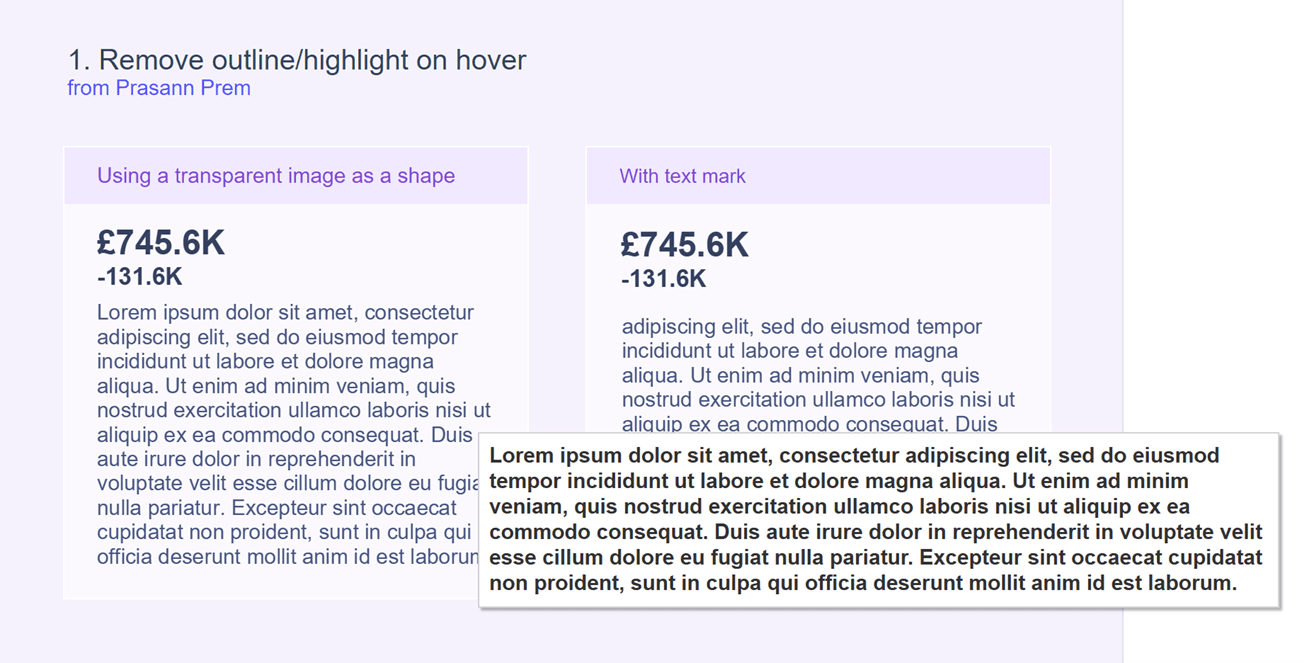
And with this hack implemented, the box on the left is what the user will see instead.
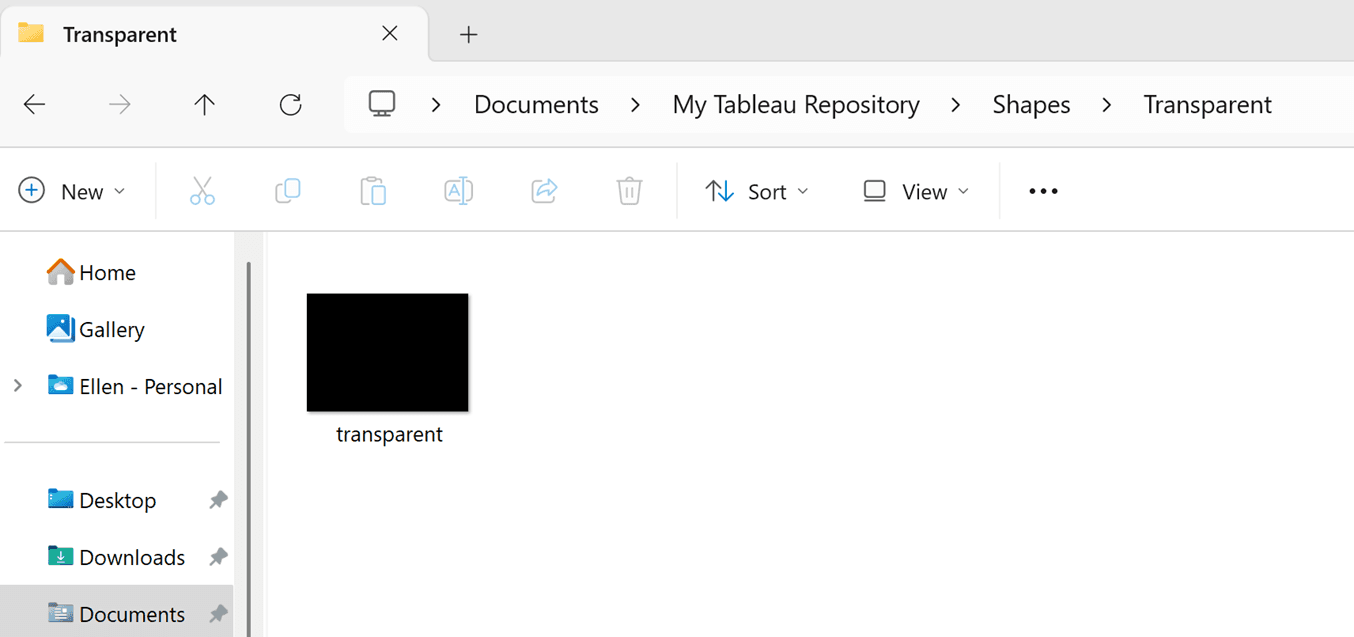
To achieve this, rather than using your typical text mark (or other similar method), you need to first add a transparent image to your Tableau repository.
I found an image online, then added this to the ‘Shapes’ folder, in its own sub-folder titled ‘Transparent’, as this makes it easier to find when you're in Desktop.
Now, add your text field to your label card, and change the mark type from Automatic (or whatever it may be) to Shape, and select your transparent image you just added.
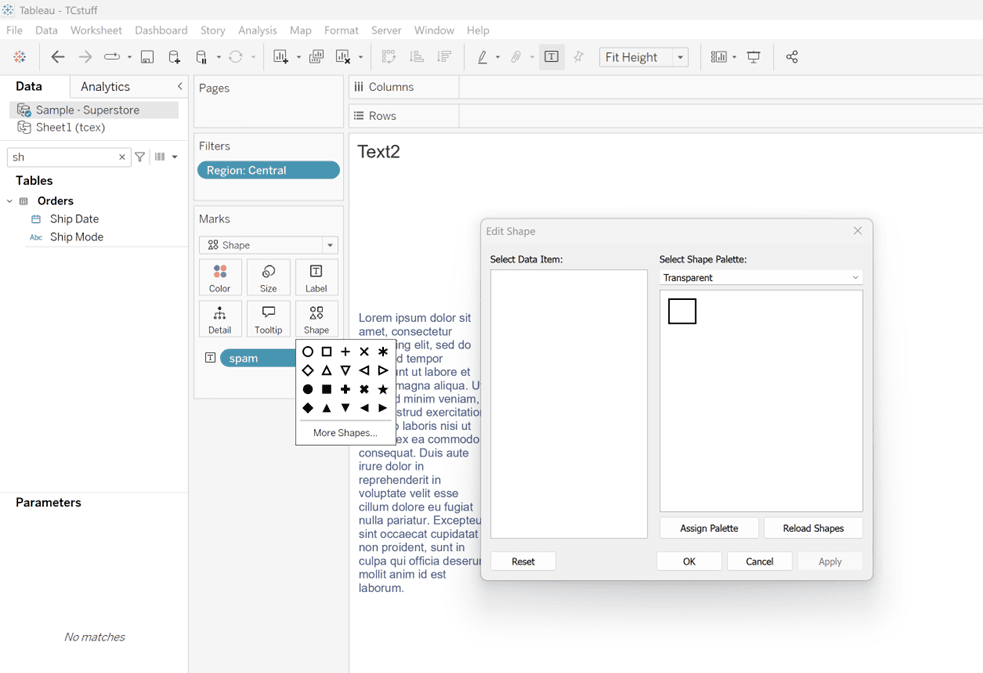
And that’s it!
Now, when you hover over this in your dashboard, that pesky black square won’t be visible.
Bonus: tooltips still work with this technique, so additional info for BANs, KPIs etc, can still be kept in tooltips for the user to see when they hover.
To see these tips in action, you can download my TC dashboard on Tableau Public.
