

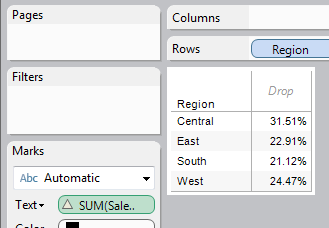
 Tableau makes it really easy to switch from showing absolute figures to a percent of total figure by using the Quick Table Calculation option. However, if you want to filter out one or more of your dimensions, the percent of total figure changes because the ‘total’ which is used in the computation changes too to reflect the loss of the dimension members. In some cases, you will want to maintain the original percentage (of the whole underlying data) whilst just displaying the dimension members you are interested in. This post examines 3 different ways to accomplish this, along with why you would or wouldn’t use that method.
Filter using a table calculation
Let’s just very briefly go through an example of what Tableau is doing in the background to get you your percent of total result. Consider a simple example using the sample Superstore Sales dataset where you show the percent of sales per region, just for Central and East.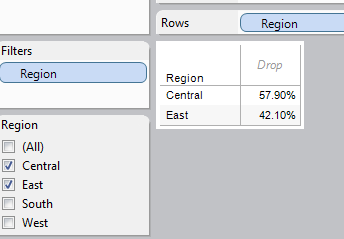
- Calculates SUM([Sales]) for each dimension member
- Applies a filter for Central and East
- Works out the total for the regions in view
- Divides each sales figure by the total worked out in step 3
Note that the Table Calculation is the last item performed in the list of steps. Table Calculations are always performed after the results from the standard calculations and filters have been computed. Therefore if you apply a filter directly to region, the ‘total’ will never equal the sum of everything over all regions.
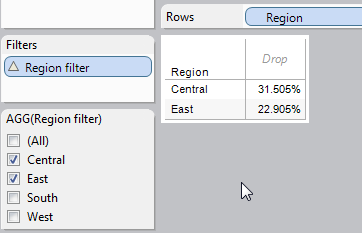 One way round this is to make Tableau apply the filter later, at the same time as the percent of total calculation. How? Make the filter itself a table calculation! By using the LOOKUP formula, we can make a new calculated field for Region that is used for filtering purposes
LOOKUP( MIN( [Region] ), 0)
Now use this calculated field on the filter shelf instead of the dimension Region itself and you will get the result you need.
This option is quick and easy to implement but it has limitations e.g. you cannot make this filter global so it may not be an option if this view and filter is needed on a dashboard
Duplicate your data
A second option is to create a duplicate data source which you will reference in a new percent of total calculation. Since filters only ever apply to a single data source at a time, a secondary set of data will be unaffected by any filters applied to the primary.
To accomplish this, right click on your data source and select Duplicate (it’s a good idea to call it something sensible such as ‘Totals’). Create a new calculated field in the original data source with the formula
SUM([Sales]) / SUM([Totals.Sales])
The last step is to remove the relationship between the two data sources for that dimension.
Data > Edit Relationships > Custom > [remove ‘Region’]
This method is useful when the first suggestion is not an option, but if you are working with large sets of data then it can potentially further clunk up your workbook
Use Pass Through (RAWSQL) functions
The final option to mention here is to make use of the pass through functions in Tableau. These functions send a query to the underlying data source, regardless of what filters have been used in the view, and return the result in a field to be used in Tableau. In this case, we want the sum of all the sales from the Orders tab in the spreadsheet.
RAWSQLAGG_REAL(“select sum([Sales]) from [Orders$]”)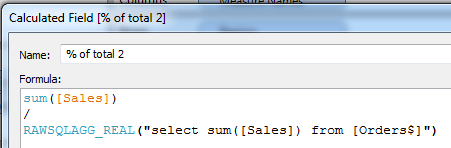
This field can then be used as the divisor in any percent of total calculation
One disadvantage of using this method is that if you later switch to using an extract, the pass through function will break.
So there you have it. 3 different ways to maintain a percent of total calculation when using filters. If you know of any more ways, or want more help on this topic post a comment below or get in touch at info@theinformationlab.co.uk