

24 June 2013
 A fairly common type of question I hear asked from Tableau users is how can they produce a visualisation from their transactional type data showing the number of customers who have placed N number orders, or the number of customers who have ordered goods with a total value between 0 – 100, 100 – 200… etc. The question is seemingly simple but the solution involves a double aggregation, which takes some additional thought to work through.It’s not limited to financial / transactional data, the problem exists in many different scenarios – show the number of employees who have completed X number training sessions from a dataset showing all the staff attendance to those sessions. Or show a histogram of the total number of weeks this year which achieved a certain interval of number of bookings, from a booking list dataset.Really what’s being asked is “How do I aggregate aggregated data?” All of these queries are similar – we need to calculate the number of bookings per week, or training sessions per employee, or order value per customer first, and then count how many times each of these results occur. Once this is understood, a solution in Tableau can be constructed.
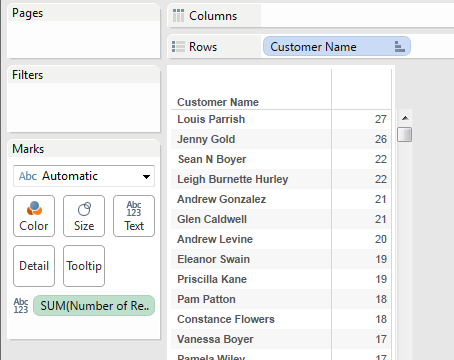 Lets start with that first calculation – how many orders per customer. I’m using the Sample – Superstore Subset data that comes installed with Tableau 8. I put Customer Name out on ‘Rows’ and Number of Records onto ‘Text’So far so easy, right? Now comes the tricky bit. We want to now count the number of customers, per SUM(Number of Records), but SUM(Number of Records) still has to be based on Customer Name, so we much keep the dimension Customer Name in the viz, even if we don’t want to show individual names. Move Customer Name to ‘Detail’, and then make SUM(Number of Records) discrete (right click > discrete) and move it to ‘Rows’ to maintain our table shape.
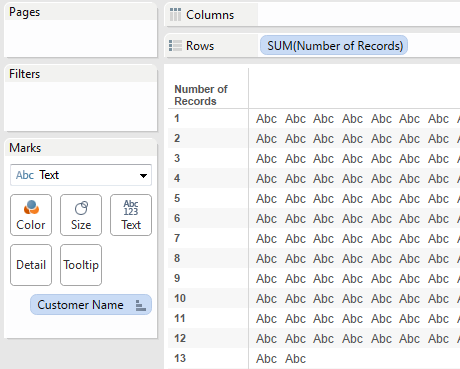 Starting to take shape? If we count all those “Abc”s in each row we’d get our answer! Let’s count how many distinct customers in each row by dragging Customer Name onto ‘Text’ with the right mouse button and selecting CNTD(Customer Name). [If you don’t have this option, you may need to do an extract]. Now all the “Abc”s are 1s that we can sum up over the window using the table calculation WINDOW_SUM.Createfield and write the formula:WINDOW_SUM(COUNTD([Customer Name]))Add it to ‘Text’ to replace the old CNTD(Customer Name) added earlier. As with all table calculations, we need to set the partitioning and addressing correctly – in this case we can select Compute using > Customer Name
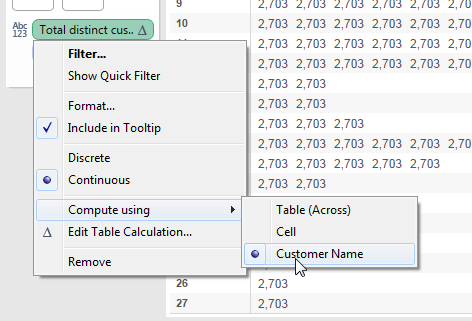 Oof! 2,703? That’s not right! There’s a couple of steps left. Our table calculation is not being partitioned by the SUM(Number of Records) but this is required. Discrete aggregates will be ignored in table calcs by default – this can be changed by clicking on the pill SUM(Number of Records) and removing the tick from “Ignore in Table Calculations”
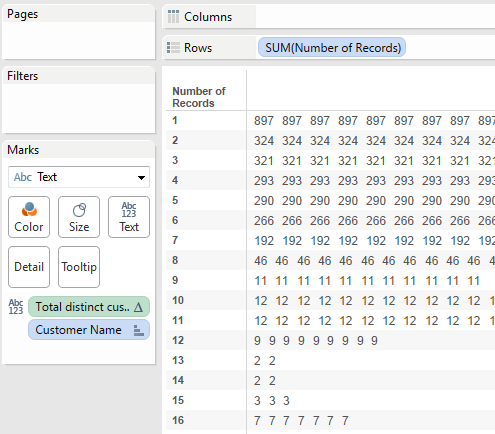 Nearly there! The numbers look right but they are repeated over and over – it’s showing the total for each customer. From here, if you’re happy with a bar chart you can move your calculated field (mine is called Total distinct customer) to ‘Columns’ and turn stacked marks off from the Analysis drop down menu, or if you’d prefer a table you can tell Tableau to only return the first number in each case by changing the formula toIF FIRST()==0 THEN WINDOW_SUM(COUNTD([Customer Name])) ENDFrom there you could create your own calculated bins using logical statements and add those to the view, instead of the SUM(Number of Records) field. Just remember to set the ‘Ignore in Table Calculations’ to off.
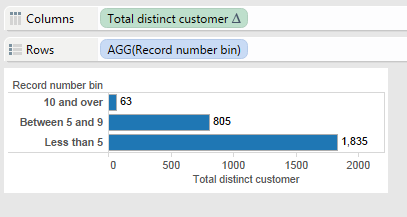 So, next time you're asking yourself something like “how do I create bins at a rolled up level”, you’ll know the steps to achieve this.If all those steps seem complicated then that’s because, well, there are a couple of quite advanced steps involved! Tableau is super easy to work with when you aggregate once, but when you want an aggregate of an aggregate it can be a little more complex. If you have access to the raw data you’re connecting to, then perhaps consider creating a new computed column that does the first step of aggregating for you, then this task is easy in Tableau. Alternatively, perform the first easy step in Tableau, and then export the results to something like Excel, and reconnect to that.Want more information or want to chat about Tableau? Leave a comment below or get in touch at info@theinformationlab.co.uk