

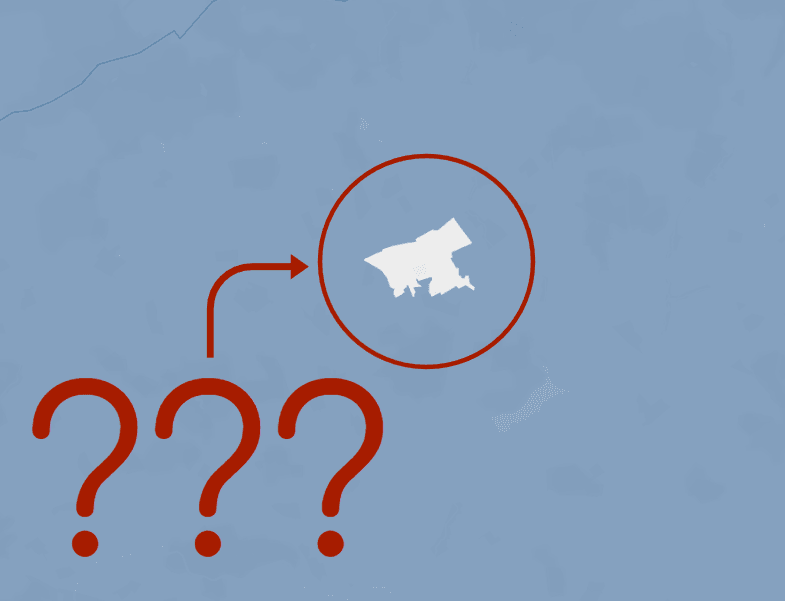
If you use custom maps or shapefiles on Tableau Public, Tableau Server, or Tableau Cloud you might have recently encountered an unusual scenario where they have begun to render in incredibly unpredictable and unusable ways. Despite this, everything renders fine in Tableau Desktop itself!
There’s no error involved, your shapes suddenly take up the entire map with no discernible reason why. If you investigated further you may have noticed that some shapes have disappeared whilst others have flipped inside out!
Fortunately, I have both the reason why and how to fix it right here.
What is happening?
The short answer: As it turns out, Tableau quietly retired an internal setting that used to let incorrectly “wound” polygons render. That leniency has now gone so the shapes either do not render at all or rendered as per the new stricter requirements which causes the inside-out behaviour.
The long answer: Tableau now enforces strict winding order and strict shape requirements. Every shape is a series of connected points which must adhere to the following rules
For the winding order:
The points on the outside of the shape must be listed in counter-clockwise order.
The points on the inside of the shape (e.g. the hole in a donut) must be listed in clockwise order.
Not adhering to this can cause the inside out behaviour as Tableau now thinks the outside of your shape in the inside and vice versa.
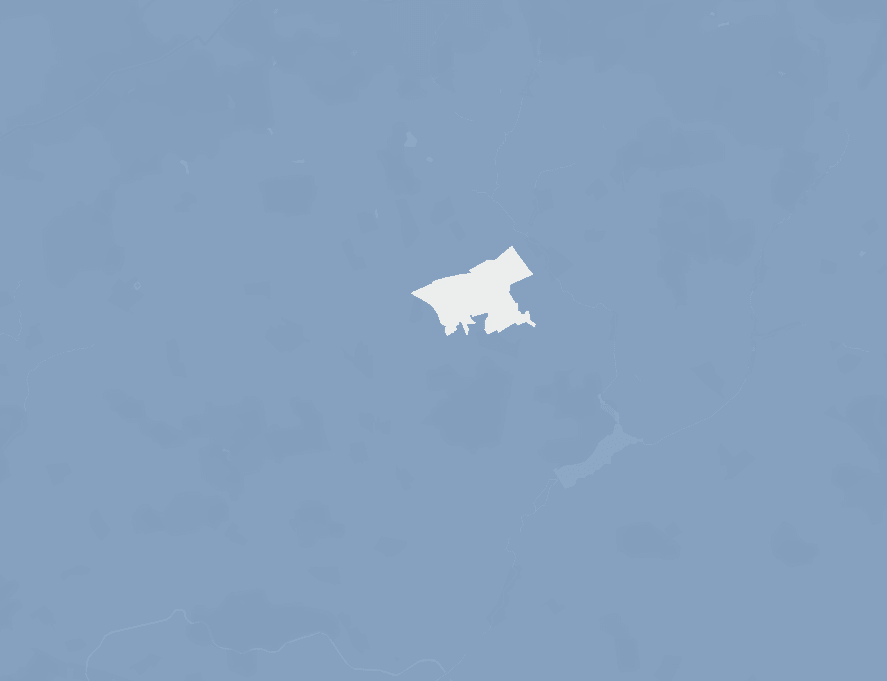
Furthermore, the other two requirements that are now enforced are:
The polygon ring must be properly closed (the first and last point match).
Edges can no longer cross over themselves (self-intersecting).
If either of these rules are broken the shape will not render at all.
What can you do about this?
There are 3 potential routes forwards here!
1. The VALIDATE() function
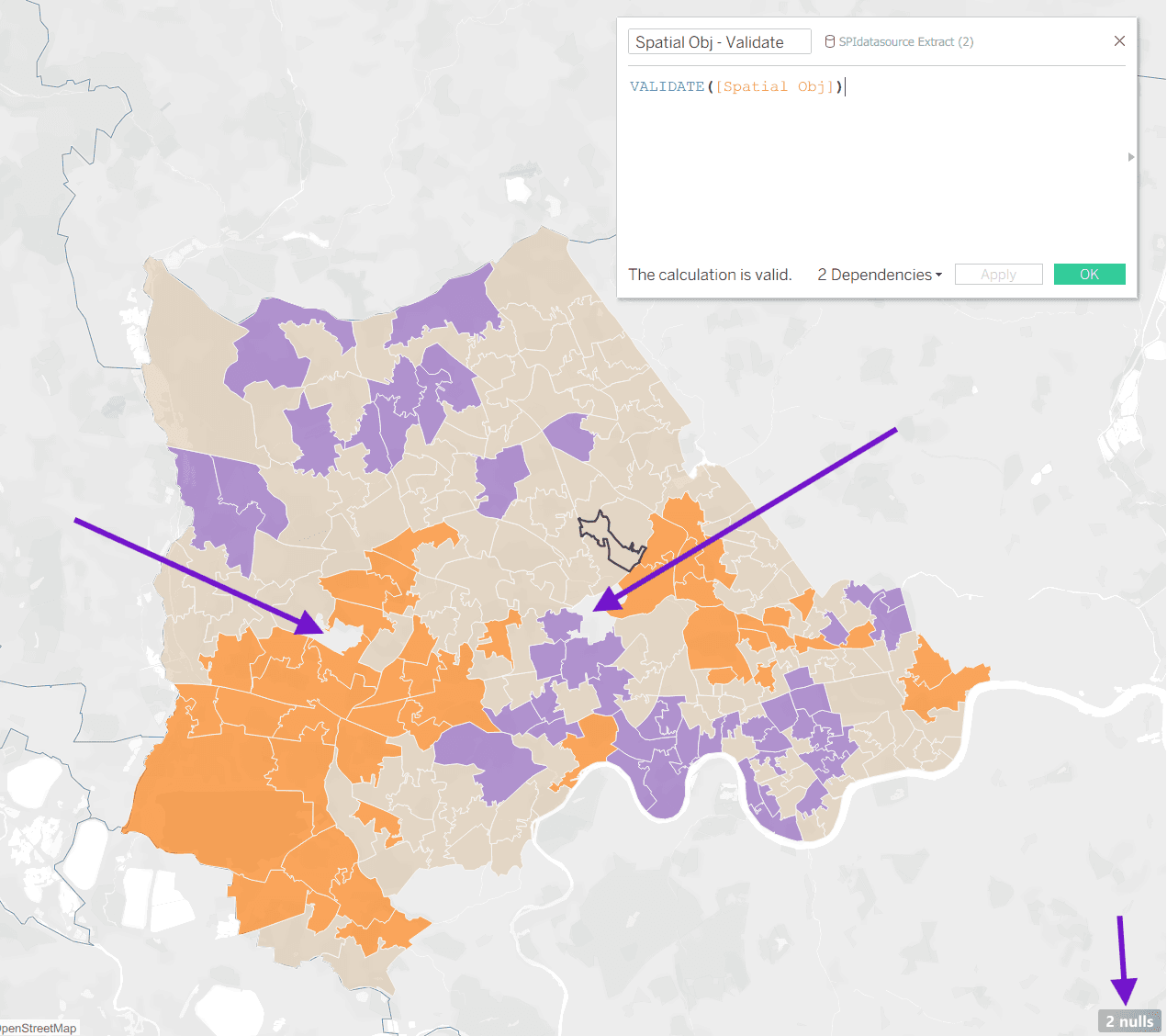
If you are only experiencing the winding issue (inside-out shapes) you can utilise the VALIDATE() function inside Tableau.
By wrapping your spatial objects in this function it can sort out your geometry for you. However, it will not fix shapes that break the other two rules. Below you can see a series of shapes where the winding issue has been resolved but two shapes are still missing entirely as their polygons break one or both of the other two rules.
2. Manually fix them in a spatial tool like QGIS.
If you’re an enterprising individual with knowledge of spatial tools like QGIS, or you know someone who is, you can manually fix up and reproduce your spatial files based on the new requirements described in this article.
3. Use the Tableau Geometry Fixer tool!
As soon as I encountered this issue I decided there needed to be a quick and easy way to fix any and all workbooks affected by this issue. If you need to fix one simple workbook with one spatial field that only has the winding issue then VALIDATE() is perfectly satisfactory. However, if you have a ton of workbooks and a ton of shape fields there needs to be an easy solution.
To that end, I can present my simple Tableau Geometry Fixer tool!
Simply download and open the .exe and:
Click Browse and select a
.twbxor.hyperfileConfirm or change the output path (defaults to
<name>_fixed.<ext>so you can either overwrite the current workbook/hyper file or create a new version).Click Fix Geometry!
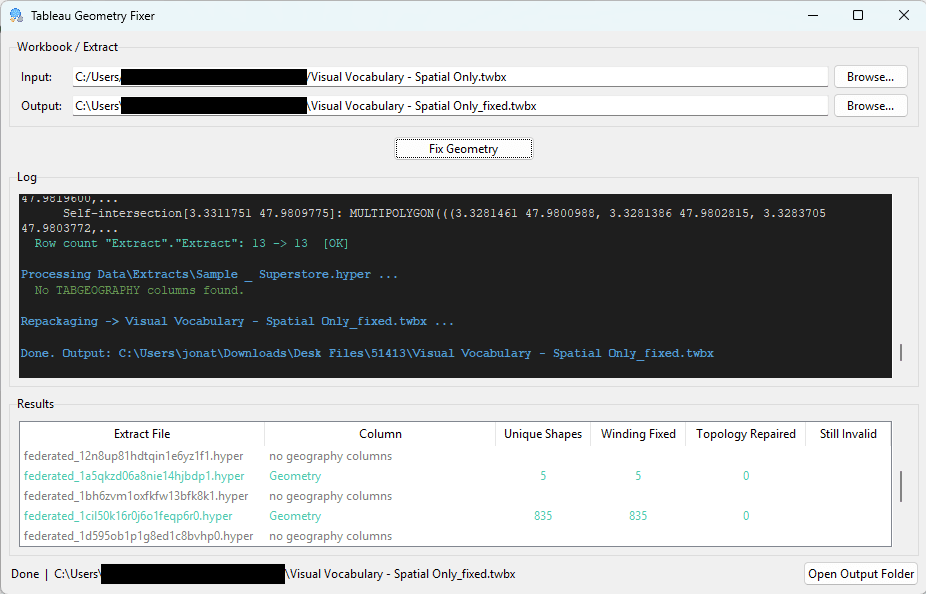
The log area shows live progress colour-coded by severity. The results table shows each geography column found, how many shapes had winding corrected, how many had topology repaired, and any shapes that could not be fully repaired. If no geometry issues are found, no output file is created so you can feed workbooks or data sources through it rapidly.
Currently the exe is only executable on Windows so if you’re on Linux or macOS and check out the GitHub page for how to run the fix_hyper_geometry.py script directly.
This is a simple tool so no data is downloaded or transferred over the internet - everything is read and written locally. Please do feel free to trial and test the tool yourself or modify it however you see fit - the code is entirely public and free to use.
I hope this guide and tool helps!